

Faculty Profile List
The Faculty Profile List component displays information about a department's faculty members.
Uses
Many Concordia departments use the Faculty Profile List component to list their faculty members.
- Some departments use one Faculty Profile List to list their faculty members.
- Others use a separate Faculty Profile List for each category of faculty, e.g. one for full-time faculty and another for part-time faculty.
Each Faculty Profile List pulls in information from an external database. You can choose how much of this information to display.
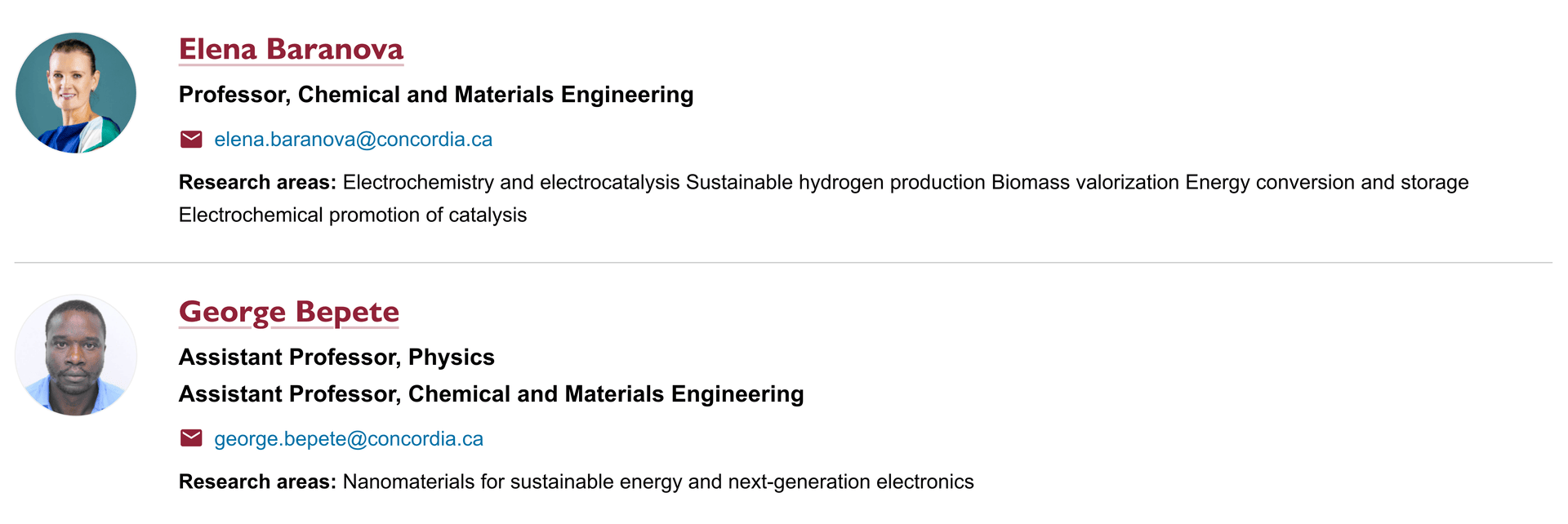
Full display shows the name, title, email and research interests for each faculty member in the list. If you click the checkbox beside Show thumbnail, it will display a small photo of each profile:
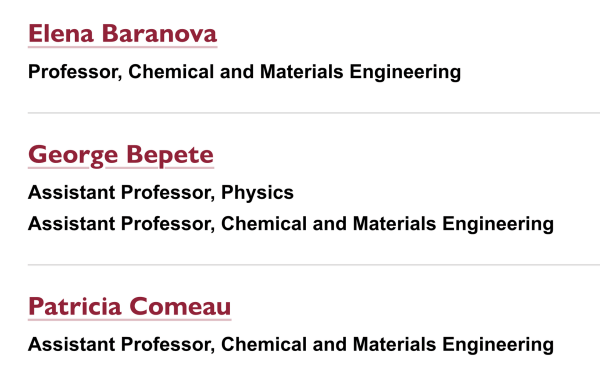
Alternatively, you can display Name, title, and status:
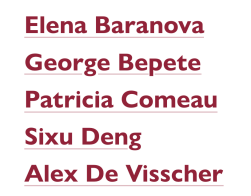
Or Name only:
Best practices
New faculty profiles
If you have new faculty who require a faculty profile:
- Follow the faculty profile process to get the profile activated and published
- Share this link with faculty if they need help updating a profile
Adding a Faculty Profile List to your page
- In the AEM Sidekick, go to Concordia Special, then add the Faculty Profile List component. If you'd like to categorize faculty members by role (Full-time vs. part-time, etc), add a Faculty Profile List component for each category of faculty.
- Open the component for editing. Note: Each Faculty Profile List connects to a large external database, and the component may take a moment to "wake up" and allow editing.
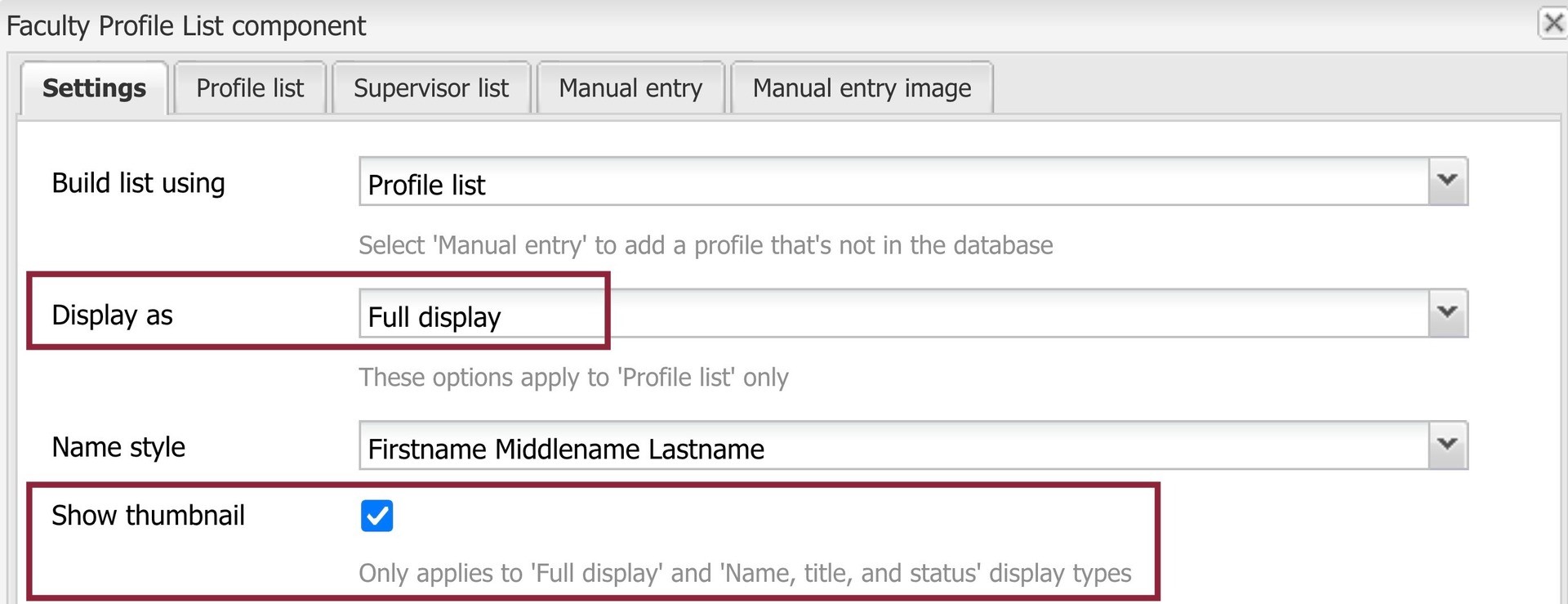
- In the Settings tab:
- Choose whether to Display as Full display; Name, title, and status; or Name only. If you're unsure which to choose, ask your Communications Advisor.
- If you've chosen Full display or Name, title and status and you'd like to display a small photo beside each faculty member, check the box beside Show thumbnail.
- In the Manual list tab:

- Beside Department, click Add Item. Click the dropdown arrow and select your department. AEM will display only the profiles associated with your department.
- Beside Profiles, click Add Item. Click the dropdown arrow and select a profile to add to the list. Continue adding profiles until the list is complete. If needed, use the green arrows to place the profiles in alphabetical order.
- Click OK.
- Activate the page.
- Check the live page.
Editing a Faculty Profile List
Each Faculty Profile List connects to a large external database, and the component may take a moment to "wake up" and allow editing.
To change what the profiles display
- Open the component for editing
- In the List options tab:
- Change the selection in Display as
- Check/uncheck the box beside Show thumbnail
- Click OK
- Activate the page
- Check the live page
To add a faculty profile to the list
- In the Manual list tab, go to Profiles
- Click Add item
- Select the profile you wish to add
- If needed, use the green arrows to maintain alphabetical order
- Click OK
- Activate the page
- Check the live page
To remove a faculty profile from the list
- In the Manual list tab, go to Profiles
- Click the red button beside the profile(s) you wish to remove
- Click OK
- Activate the page
- Check the live page
Accessibility
For each Faculty Profile List to be accessible, it needs to be clear to visitors what the list includes. Above each list:
- Add a Title component
- Provide a clear title for the list, e.g. Full-time faculty
- Set the Header size to H2 or H2 Burgundy