

Set up instructions for your Apple device
How to upgrade the mobile security on your Apple device to access your Concordia accounts with Mobile Application Management (MAM)
For new devices: Install MFA first
If you are using a new device and have not yet installed the Microsoft Authenticator App for Multi-factor Authentication (MFA) please do so before installing your Concordia applications.
Step 1
You will receive a notification (see figure 1) the first time you access the following Concordia apps: Outlook, SharePoint, OneDrive, Word, Excel, OneNote, Teams, PowerPoint and Edge.
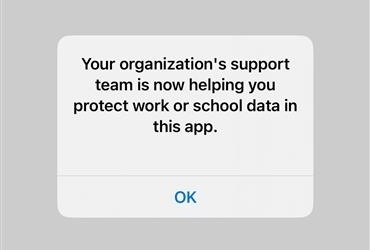 Figure 1. Activation notification
Step 2
Click OK (see figure 1) and you will be prompted to enter a 6-digit PIN (see figure 2).
This PIN will be used to log into any of the listed Concordia accounts. If you have biometrics enabled on your iOS device, you will automatically be prompted to use either Face ID or Touch ID instead of your password.
You will be required to verify your identity once every 8 hours to run your Concordia apps.
 Figure 2. Prompt screen for 6-digit PIN.