
Mobile app security
As more people use their mobile devices to access their apps and data, the risk of cybersecurity threats rises. Learn how Concordia protects you and your information.

Managing and securing Concordia mobile apps and data
Concordia has a security feature to protect your mobile devices. Microsoft InTune Mobile Application Management (MAM) is a cloud-based service designed to ensure that your phone or tablet meets essential security standards before allowing access to select Concordia applications.
This feature helps to protect your information and ensures compliance with regulations from the Government of Québec.
Accessing Concordia apps using Concordia's security solution
Set up for first time use
The first time you use a protected Concordia application, your device will automatically undergo a security check. This process takes a few minutes, can be done remotely, and differs slightly between iPhones and Androids.
To learn about the set-up process, select your device type below:
User compliance guidelines
To access Concordia data securely, your mobile device must meet these requirements:
- The device must run on a supported operating system (iOS 16 or higher, Android 12 or higher). This ensures that the device is still receiving necessary security patches and operating system updates.
- The device must not be modified (jailbroken for iOS or rooted for Android). Rooting (Android) or jailbreaking (iOS) removes the built-in security features of the operating system, making the device more vulnerable to malware, viruses, and unauthorized access.
- The device will need a new 6-digit PIN or biometric authentication to access the Concordia applications listed above. This is in addition to any existing authentication methods on your device.
- The PIN prompt will only appear once every 8 hours, and access will be blocked after 5 failed attempts.
What to do if your device is not compliant
- If your device doesn’t meet the operating system requirements, you can update it to the latest available version.
- If your phone is unable to support the required OS for compliance, you can still access all applications through a web browser instead of the mobile app. For instance, you can check your Concordia email via Outlook.com
- If you consider your phone essential for your work, please discuss potential solutions with your supervisor.
Important user considerations
Privacy:
- Your Data: Concordia's mobile security solution applies only to the Microsoft apps listed above, ensuring secure sign-on and protecting your data. Your information remains private and confidential.
- Device Privacy: Concordia does not manage or control your mobile device and cannot access personal apps, messages, photos, or other private data.
Limitations:
- Two MAM (Mobile Application Management) Instances: You cannot have two MAM systems on the same device. If you use Concordia's MAM for Concordia apps, other institutions' MAM-protected apps won't work. Contact help@concordia.ca for support if needed.
- Personal Accounts: If you use any listed Microsoft apps with both a personal and Concordia account (ex. Outlook), Concordia's security solution will require your 6-digit PIN to access both. Your personal account's content stays private but gains additional protection.
Alternative Access:
- Web Browsers: All secured Concordia application can be accessed via web browsers. For example, outlook.com. Concordia's security solution is not required when accessing Concordia services on their web platforms.
Email Impact:
- Apple Mail and Google Mail Users: Current employees using Apple Mail and Google Mail won't be affected by these changes.
What this means for you
Concordia's security feature keeps Concordia apps and data separate from your personal apps and data on your mobile device. Here's how it helps:
- Security: If your device is lost, stolen, or if you leave Concordia, Concordia apps and data can be removed from your device. This is only for Concordia apps and data. Your personal information and apps remain safe and cannot be accessed.
- Enhanced Authentication: Concordia’s secured apps have an extra layer of security to protect your Concordia data.
- You’ll be prompted for a six-digit PIN or biometrics every 8 hours.
- After 5 failed access attempts, you'll need to use your personal authentication method.
- Encryption: Data within Concordia apps is encrypted, meaning it's kept safe both when stored on your device and when sent over the internet.
- Privacy: These security features apply to secured Concordia apps; your personal data outside of the specific Concordia apps won't be affected.
Concordia's security solution keeps your work data secure while maintaining the privacy of your personal information.
Privacy assurance
Separation of personal and Concordia data
Concordia’s security solution keeps your personal data separate from Concordia data. Concordia apps and data are managed and secured by Instructional and Information Technology Services, while your personal information stays private and untouched.
No information on personal apps and data
Personal applications, messages, photos, and other private data cannot be seen, accessed, or controlled by Concordia.
No information on any browsing history
Concordia does not have access to browsing history, including the history within the Edge browser attached to your Concordia account. All historical, current and future browsing history will remain confidential.
No location visibility
Concordia’s security solution does not give any visibility on device location.
Resources and support
If you have any questions or concerns, please contact help@concordia.ca.
FAQ
Unfortunately, Concordia's mobile security solution cannot be used on mobile devices that are no longer supported by the manufacturer due to security risks and compatibility challenges.
Unsupported operating systems do not receive security updates, making them vulnerable to security threats. Concordia's mobile security solution relies on a secure foundation provided by operating systems to protect data. The inability to patch security holes means that any Concordia-managed apps operating on these systems are at a higher risk of compromise, which undermines the entire security framework that the solution aims to enforce.
IMPORTANT NOTE: You will still be able to access these applications on your mobile device through a web browser rather than an application. For example, you will be able to access your email via outlook.com.
No, Concordia's security solution cannot prevent you from downloading personal applications or will Concordia's approval be required for downloads. The solution only manages and secures Concordia applications and data, allowing you to freely download and use personal apps which Concordia will be unable to see.
Yes, instead of accessing your Concordia data on mobile applications you can access your data from a computer or via the website instead. For instance, you can use outlook.com to access your Concordia Outlook account, bypassing the need for the Outlook app on your mobile device.
However, all access to Concordia applications on mobile devices will require the additional security measure of Concordia's security solution.
No, Concordia does not have access to browsing history, including the history within the Edge browser attached to your Concordia account. All historical, current and future browsing history will remain confidential.
If your Concordia-owned phone or tablet is lost or stolen, please fill out an IT Security incident form at https://www.concordia.ca/it/security/reporting.html
Be sure to mention that your device is missing.
If your phone or tablet is lost or stolen, please contact the Service Desk by opening a ticket at help@concordia.ca. Be sure to mention that your device is missing.
Concordia will remotely erase only university-related data from your device, ensuring that your personal files, apps, and photos remain untouched.
No, mobile devices cannot contain two instances of MAM (Concordia's security solution) simultaneously on the same device. Meaning, if you are using Concordia’s security solution on your mobile device to access Concordia applications, you cannot have a version of the same application from another institution installed at the same time.
If this is something that impacts you, please reach out to help@concordia.ca for further information/assistance
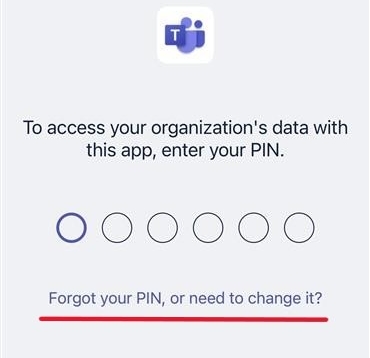
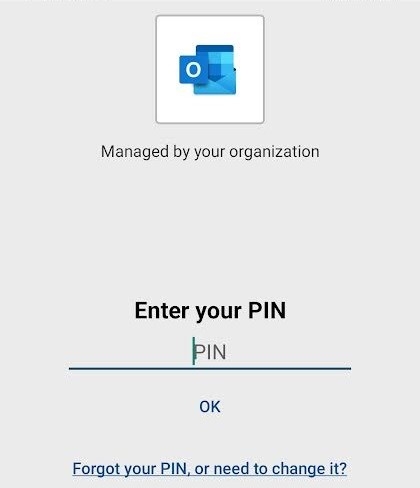
If you forget your 6-digit PIN, you can reset it at any time by clicking on the blue text “Forget your 6-digit PIN, or need to change it?”
You will be requested to enter in your Concordia netname and password, then you will be returned to the initial 6-digit PIN setup screen to enter a new 6-digit PIN.
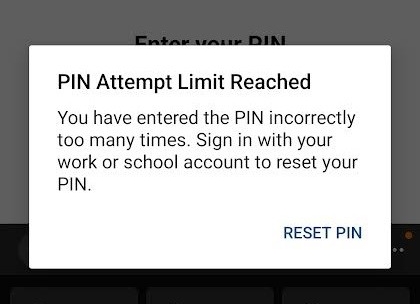
If you enter in the wrong PIN five times in a row, you will get a notice that says “Pin Attempt Limit Reached.”
Proceed just like you would if you were resetting your pin. Enter in your Concordia netname and password when requested, then enter a new 6-digit PIN when returned to the initial PIN setup screen.