

Set up instructions for your Android device
How to upgrade the mobile security on your Android device to access your Concordia accounts with Mobile Application Management (MAM)
For new devices: Install MFA first
If you are using a new device and have not yet installed the Microsoft Authenticator App for Multi-factor Authentication (MFA) please do so before installing your Concordia applications.
Step 1
You will receive a notification (see figure 1) the first time you access the following Concordia apps: Outlook, SharePoint, OneDrive, Word, Excel, OneNote, Teams, PowerPoint, and Edge.
Troubleshooting:
If any of the checkmarks fail, please reach out to the IITS Help desk for further information.
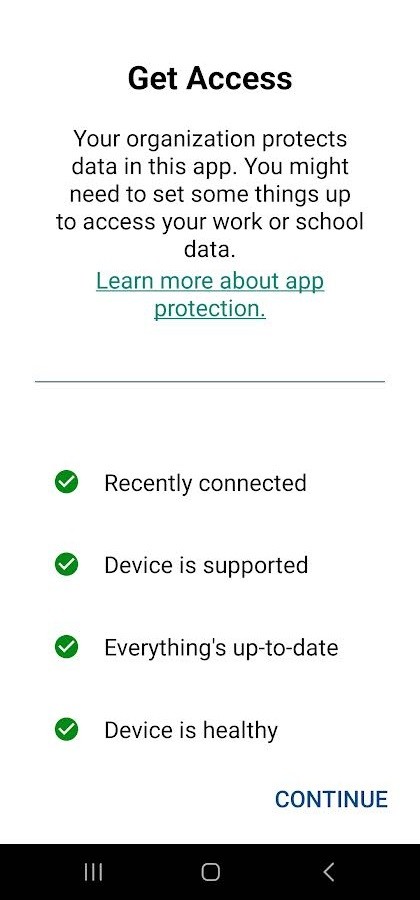 Figure 1. Activation screen
Step 2
The “Get Access” screen (see figure 1) will verify that your device meets the requirements needed for the MAM App Protection Policies. Click "Continue" to proceed.
If you do not initially see the “Get Access” screen, but receive a notification like the image to the right (see figure 2), you can proceed from there instead.
Step 3
You will be presented with a screen (see figure 2) that informs you that the Microsoft Intune Company Portal must be installed.
Click on “Go To Store” to be directed to the store page where you can install the Intune Company Portal. It must be present on Android phones for App Protection Policies to function.
IMPORTANT NOTE: You do not need to run the application. Please do not sign in.
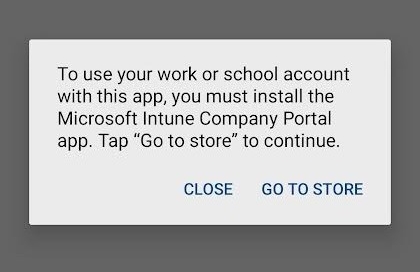 Figure 2. Step 3 screen informing that the Intune Company Portal must be installed
Step 4
Once the Company Portal is installed, return to your previous Microsoft application. You will be prompted to enter in a 6 digit PIN. (See figure 3.)
This PIN will be used to log into any of the listed Concordia accounts. If you have biometrics enabled on your Android device, you will automatically be prompted to use either face recognition or fingerprints instead of your password.
You will be required to enter in your identification once every 8 hours to access your Concordia apps.
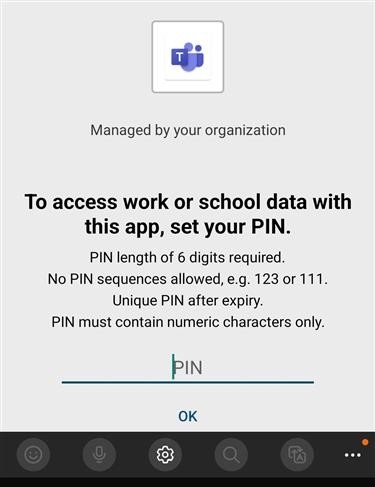 Figure 3. Step 4 prompt for 6-digit PIN