

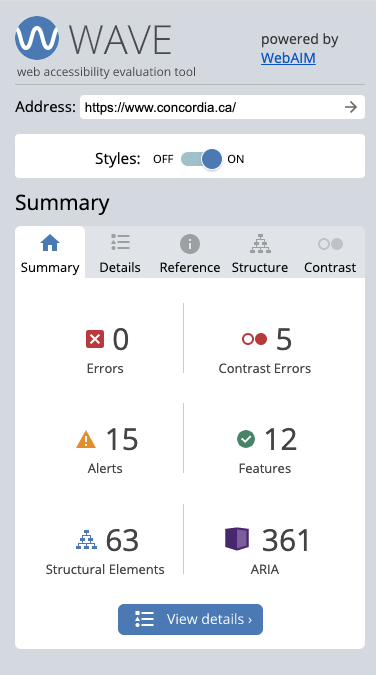
- Errors appearing on your site are typically caused by AEM components which are not functioning properly. If your site generates an error, contact the UCS Web team at webcoord@concordia.ca to report the error. Please include a link to the page you are analyzing with WAVE.
- Alerts usually signify design or content issues that may be problematic but not critical. If your site is generating more than 20 alerts, it may be worth reporting it to the UCS Web team at webcoord@concordia.ca.
- Structural Elements are structural features or tags on your site that are used by assistive technologies to navigate your site. These are usually heading, navigation, form, search, list and footer tags. This item on the report doesn’t signal issues. No action is needed here.
- Contrast Errors are areas of poor color contrast which can affect a wide range of users including people with visual, cognition, and learning disabilities. It can also impact users on mobile devices in bright environments. Lack of sufficient contrast prevents people from being able to perceive the information that the content is attempting to convey.
AEM users can fix this problem without assistance by selecting a more high-contrast pairing of text and background. - Features display accessibility features currently present on your site. This includes alt text for images, form labels, fieldsets, skip links and more.
No action is needed here. - ARIAs (Accessible Rich Internet Applications) are sets of attributes that define ways to make web content and web applications more accessible to people with disabilities. This supplements HTML so that interactions and widgets commonly used in applications can be passed to assistive technologies when there is not otherwise a mechanism. No action is need here.
article
How to use the WAVE web accessibility evaluation tool for your website
Why is accessibility important?
When websites are accessible, assistive technologies such as text-to-speech, voice-over, screen readers, text magnification, and descriptive video empower people with vision, hearing, mobility or cognitive impairments. They can better navigate and understand content rather than having to rely on others.
Review the article on Making Concordia websites accessible for a refresher on the main principles of accessible web content and best practices.
After implementing these best practices, it's time to test your site with the WAVE evaluation tool to identify accessibility gaps.

How can I test my site for accessibility?
We recommend using WAVE, a web accessibility evaluation tool developed by the WebAIM (Web Accessibility in Mind) team at Utah State University. WAVE generates a summary of accessibility issues and features on any website you wish to analyze.
How does WAVE work?
Website version
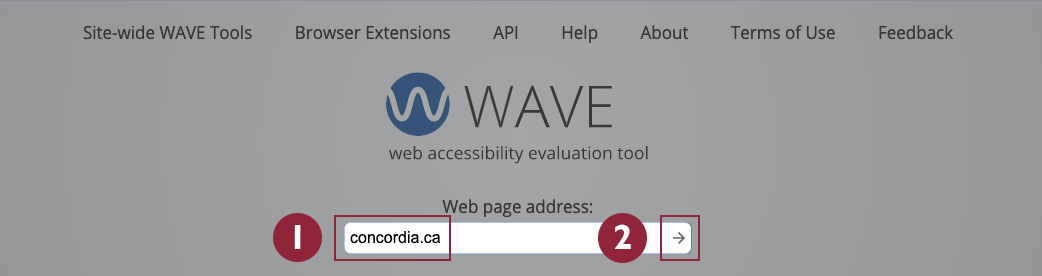
Visit the WAVE web accessibility evaluation tool site and enter the URL of your web page.
Click on the right arrow to get an analysis of your site.
Google Chrome extension version
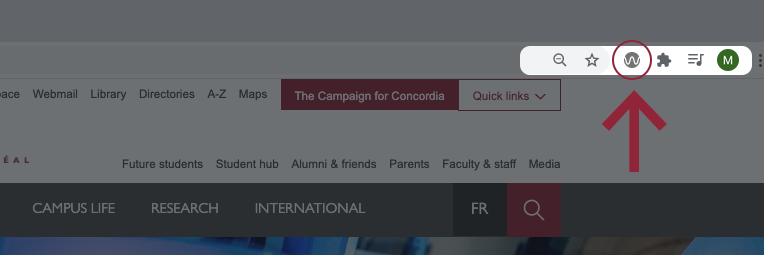
- Visit the site you wish to analyze.
- Click the WAVE icon from the extensions section of your browser to open the WAVE dashboard.
The WAVE dashboard
The WAVE dashboard generates a summary of six different accessibility measurements. Click on the 'Details' tab to obtain a breakdown of the report as seen below.

Structure
The 'Structure' tab provides a high-level view of your site’s structure (e.g., header, navigation, search, headings, footer). This section allows AEM users to review their structure logic.
Following a review of the site’s structure, you may wish to implement different Heading tags. You can review Concordia’s article The significance of headings.
Want to learn more about accessibility?
Become familiar with the basics of web accessibility by:
- learning more about headings in greater detail;
- consulting the accessibility resources offered by the W3C;
- reviewing these user-friendly Designing for accessibility posters by the UK government.


