

- Go to office.com (sign in if not already)
- Click the ‘waffle’ menu in the top-left corner of the Office toolbar
article
Use Power Automate to email responses from MS Forms
Power Automate is a powerful Microsoft 365 tool that connects Outlook with MS Forms
People often want responses from MS Forms to be emailed rather than accessed directly through the form. Some stakeholders may not have (or want) admin permissions for a form but require that the results be shared with them.
We can automate sending an email with the form responses to whomever we specify, each time the form is submitted by a user. Power Automate allows us to create this automated workflow so that responses will be emailed from a role account/shared mailbox in Outlook. Using a role account means not depending on a person's email address in the event they leave the department or university.
Note: To set up this functionality, you must have:
- admin access to the form
- access to the role account/shared mailbox
We will use a sample feedback form to go through the steps of setting up an automated workflow (called a “flow”) in Power Automate.
Choose a Power Automate template

- Click All apps →

- Scroll down the list and click Power Automate
- In the left-hand menu click Templates
- In the “Search templates...” search bar, type the keywords: shared mailbox

- Click the template called “Send an email from shared mailbox on Microsoft Form submission”
- Click Continue
- The Power Automate template appears
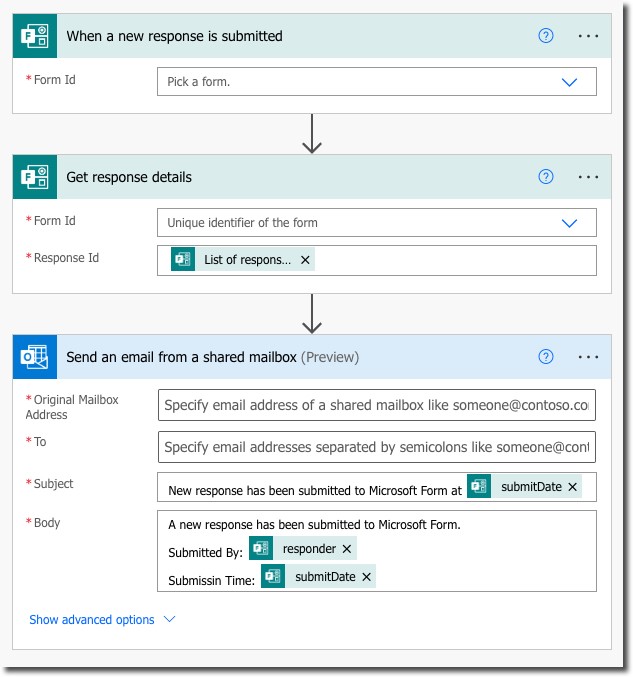 A Power Automate template
Complete the Power Automate template
1. When a new response is submitted
Form Id
To ensure we're connecting our flow to the correct form, we will locate the ID of our form and enter it in the Form Id field.
- Click inside the Form Id field
- Click Enter custom value at the bottom of the drop-down list, then:
- In another browser window, go to your form in MS Forms
- Click the Share button
- Click the Copy button
- Return to the template and paste the link into the Form Id field
- For our sample form, the link is:
https://forms.office.com/Pages/ResponsePage.aspx?id=hfFpVS_SE06YUM5bGrzS6IyS05qwPWlNuwGVgHAXWnJUOUs3VjZCRk5GRjI0NjA3WjhCMzVEUUVISyQlQCN0PWcu
- We only need the form ID, which is the string of alphanumeric characters after “...id=”
hfFpVS_SE06YUM5bGrzS6IyS05qwPWlNuwGVgHAXWnJUOUs3VjZCRk5GRjI0NjA3WjhCMzVEUUVISyQlQCN0PWcu
- For our sample form, the link is:
- Delete everything inside the field except the form ID
2. Get response details
Form Id
- Click Enter custom value at the bottom of the drop-down list
- Copy-paste the same ID into this field from the previous section
Response Id
The Response Id field should already be pre-populated with a dynamic content element called List of response notifications Response Id.
No action is required unless the field is empty.
If the field is empty:
- Click inside the Reponse Id field
- Click Add dynamic content and a panel will appear
- Under the Dynamic content tab, start typing “List of responses” in the search bar and select List of response notifications Response Id in the list of results
3. Send an email from a shared mailbox
IMPORTANT: Before we begin to complete this section of the template, click Show advanced options to expose all the fields. Scroll down to the field labelled Is HTML, and select Yes from the drop-down list. This allows us to later format our message using HTML tags so that it will be easier to read.
Original Mailbox Address
In this field, we must specify the email address of the shared mailbox that the message will come from.
For our example, we enter the role account for the shared mailbox: webtraining@concordia.ca
Note: Concordia email addresses should already be included in Concordia's global address list so as we start typing in the field, the address will appear as a suggestion and can be selected.
To
In this field, we must specify email addresses separated by semicolons that the message will be sent to.
For our example, we will email the responses to the same account as the original, and also another account: webtraining@concordia.ca; webcoord@concordia.ca
Again, because we are sending to internal Concordia email addresses, they appear as suggestions once we start typing in the field and can be selected; we don't have to type the semicolons in this case.
Note: If needed, email addresses can also be added to the CC and BCC fields in the exposed advanced options.
Subject
In this field, we must specify the subject of the email message. By default, the field is pre-populated with suggested text and also a dynamic component called Submission time which is a timestamp reflecting the date and time at which a new response has been submitted.
Note: Power Automate uses Coordinated Universal Time (UTC) for the timestamp. Advanced steps would be required to convert UTC to a different time zone.
For our example, we will simply replace the defaults with our customized text:
Sample feedback form response
Body
In this field, we specify the Body of the email message. By default, it is pre-populated with some text and dynamic content such as the responder's email address.
We will overwrite the defaults and customize our message. We want to include all the responses from the fields in MS Forms. We do not want to include the responder's email address in this case.
Once we've deleted all the pre-populated content in the Body, we copy-paste the questions from the MS Form. Make sure to enclose the text in HTML <p> tags. We can also add tags for bolding or headings if we want to refine the formatting further.
Beside each question, we select the associated dynamic content. Notice that when we click inside the Body, the dynamic content panel appears; if it doesn't, click the “Add dynamic content” link. The dynamic content appears in the Body where our cursor is positioned once it's selected from the panel.
The HTML in the Body would look similar to this:
<p><b>Name:</b> [dynamic content selected for “Name”]</p>
<p><b>Program:</b> [dynamic content selected for “Program”]</p>
<h2>Satisfaction ratings</h2>
<p><b>Teaching quality:</b> [dynamic content selected for “Teaching quality”]</p>
When the Body is filled in, click the Save button at the bottom of the page.

Test the flow
If there are no errors in the template after saving it, a message in a green banner will appear across the top of the page that says, “Your flow is ready to go. We recommend you test it.”
- Click Test in the top-right corner beside the flask icon

- Select Manually
- Click the Test button at the bottom of the page. (Nothing further happens while Power Automate waits for you to test the form in the next step.)
- Next, (in another browser tab) go to the MS Forms shared link to fill in and submit the form as any typical user would
- Back in Power Automate, a message will appear across the top of the page that says, “Your flow ran successfully.”
- In Outlook, we should receive an email in the account(s) that we specified earlier as the recipient(s), with the subject line that we specified, i.e., “Sample feedback form response”
- Review the message to verify it reflects the content that was specified for the Body
- If refinements are required, edit the Power Automate template further and repeat the process
Voilà!
Power Automate is a powerful application with many templates and advanced flows possible but with just a few steps, we can successfully trigger a basic email containing the responses to our form, each time the form is submitted.
 A form submission triggers the Power Automate flow to send an email


