

article
How to get Adobe CC
If you wish to use Adobe CC software you will require an Adobe CC license. Concordia is providing these licenses for students, faculty and staff. This license will allow you to use the installed Adobe CC software on a Concordia computer (in the CDA labs) and elsewhere. Having an Adobe CC license will also allow you to download the software on your own computer. Licenses are active for the duration of a semester.
How to Get an Adobe CC License
Students:
Fine Arts has a limited number student licenses and assigns them based on the courses the student is registered in, not their program.
Students who are registered in a class on this list get access automatically.
If you are registered in a Fine Arts class in the current semester and need to use Adobe CC for curriculum work, you can submit a License Request.
Students who are on exchange and/or who have different academic calendar dates (start/end of the semester), please use the same form.
Faculty and Staff:
Faculty can request licenses for the students in their class.
For a personal license, faculty and staff must request an employee license using an IITS Form.
Be sure to be logged into Office 365 when completing the IITS form. Here's more information on Office 365 for faculty & staff and for students.
Adobe Cloud Storage
Files stored in Adobe Document Cloud Storage (Adobe Storage) will be permanently deleted after the account becomes inactive.
Adobe accounts become inactive in these scenarios:
- All the Adobe licenses are removed from the account.
- At the end of employment or research appointment at Concordia for employees.
- At the end of the semester or semesters for which the licence was assigned to a student.
If you have been granted an Adobe license for a specific class then you must back up data from your Adobe Cloud storage befofe the class ends. If you have requested an indivudal Adobe license then you must back up data from your Adobe Cloud before the end of the semester.
Installation on your personal computer
From this page, https://adobe.com/apps/all/desktop, download the Creative Cloud desktop app.
- If you are a student, log in with your <netname>@live.concordia.ca email.
- If you are faculty or staff, log in using <netname>@staff.concordia.ca.
- Do not use Continue With ... (Google, Facebook etc) logins
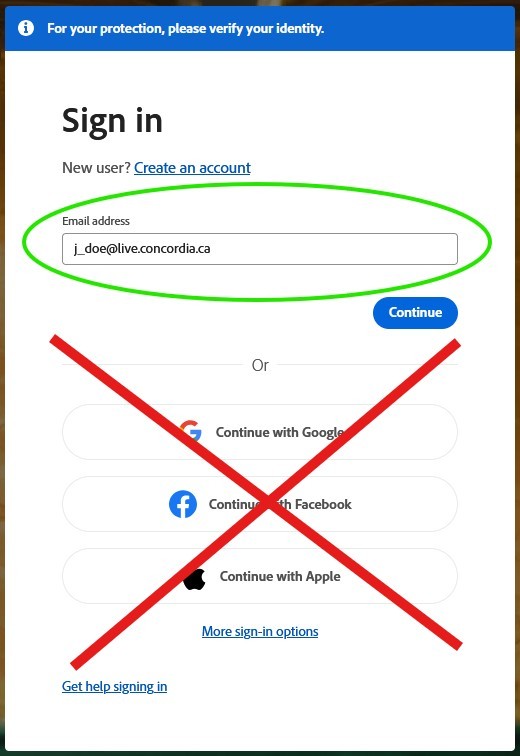
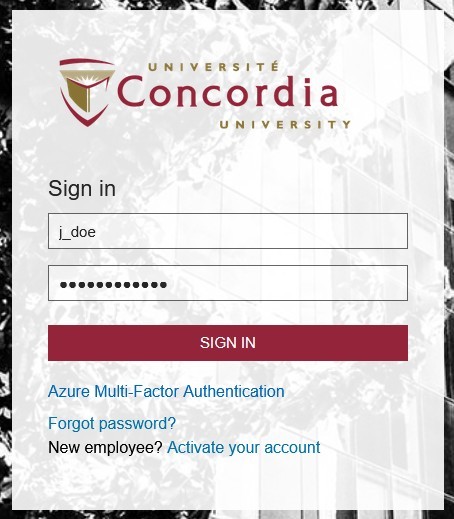
You will then be redirected to the Concordia login page. Enter your netname and password
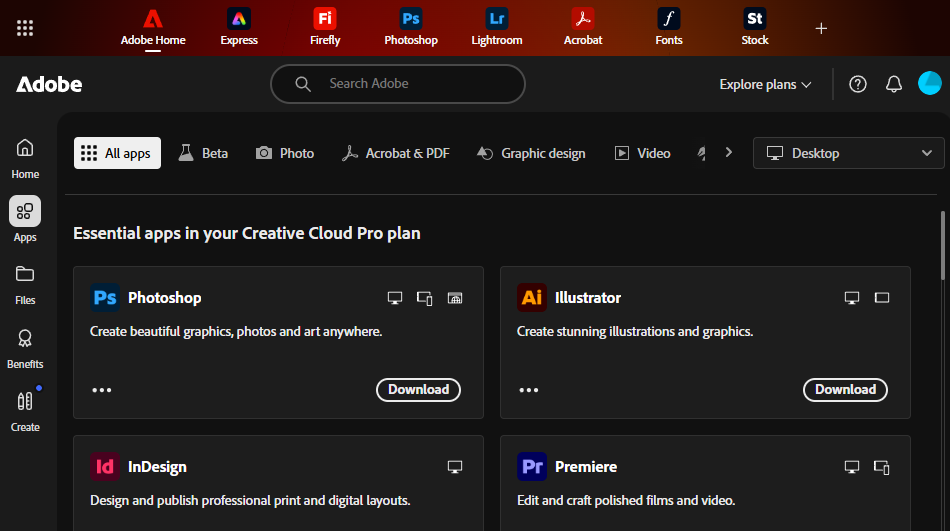
At this point, if your license is active, you should see a list of available apps.
You can ether download them directly, or install the Creative Cloud app, and add the apps you need from there.
You can find the Creative Cloud app by scrolling through the apps list, or by using the search function.
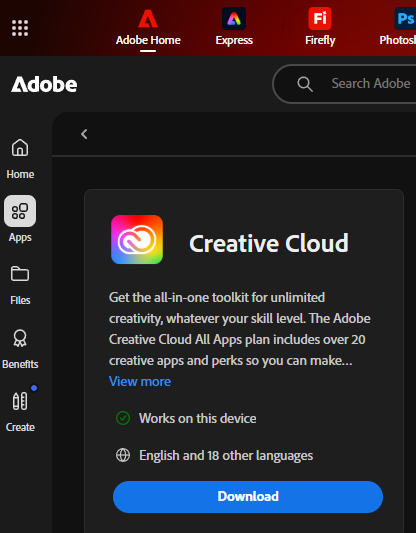
The Creative Cloud Installer will be downloaded, double click on the Installer.

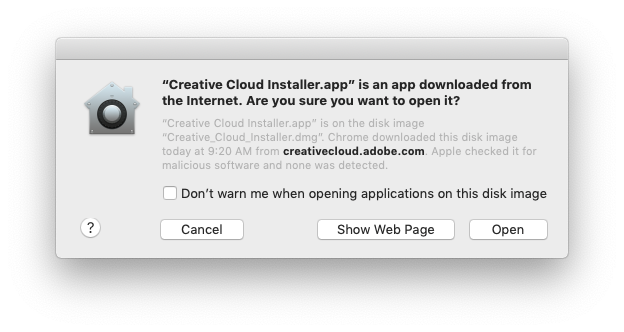
You might be prompted by macOS to trust the Application, click Open.
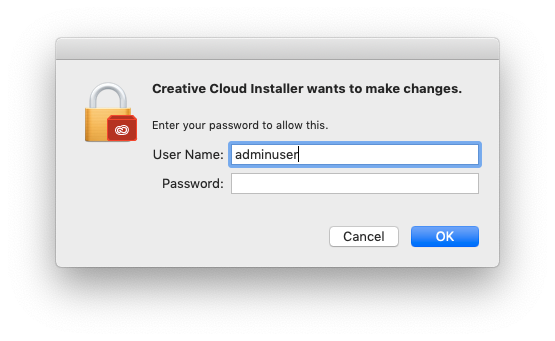
Enter your local admin account credential to start the installation. This is the same that you use to unlock your computer.
You will then be redirected back to your browser to authenticate once again but it should remember our last login.
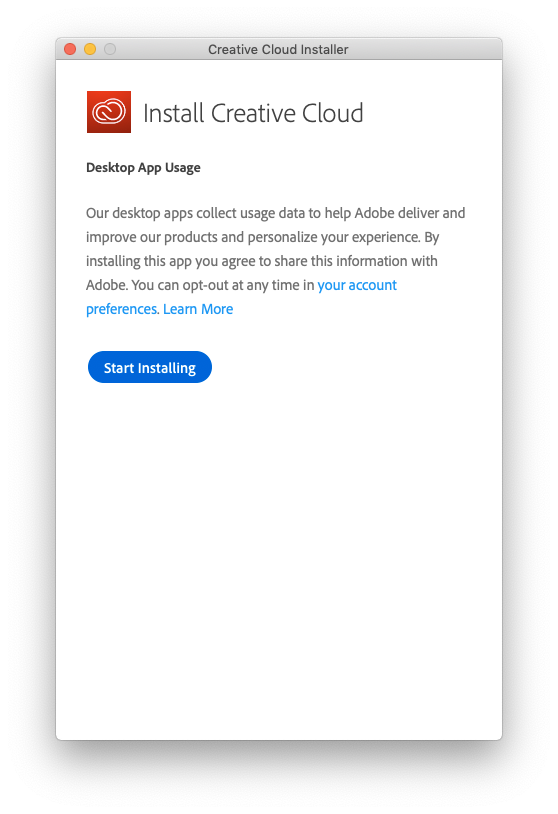
The final phase of the installation is underway.
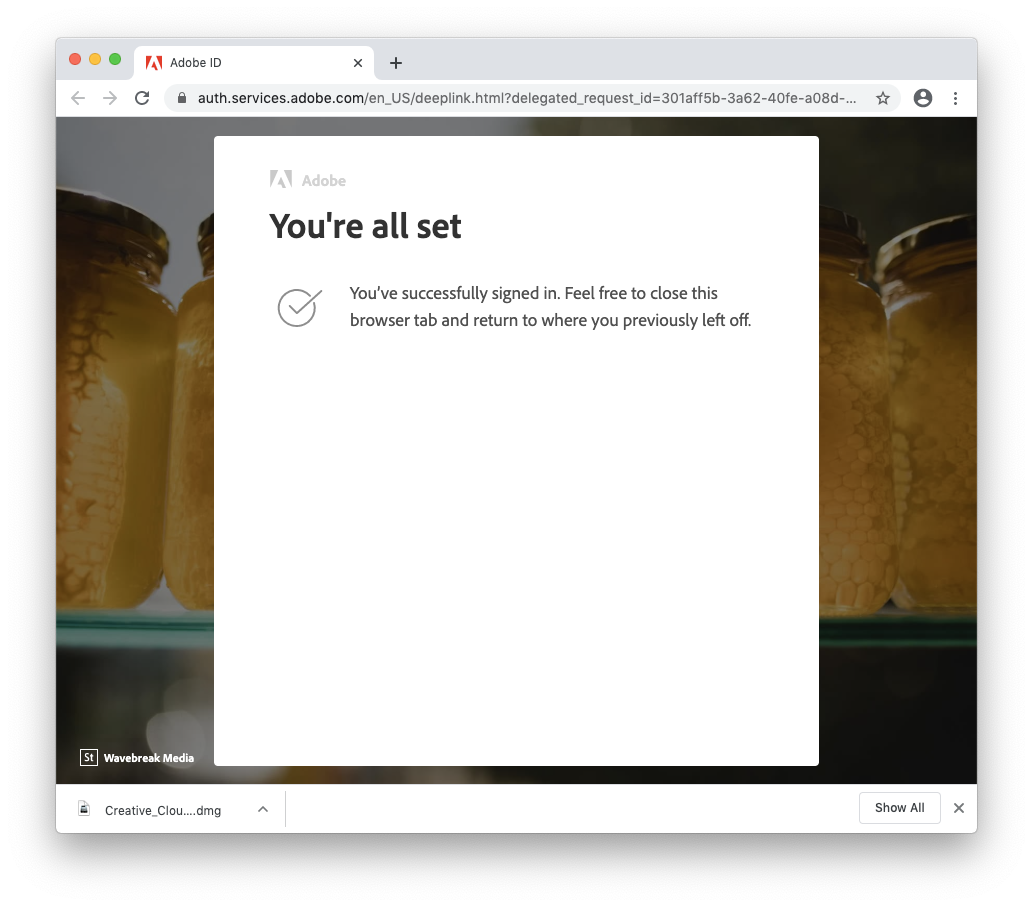
You now have access to install and update all the apps

For more information:
Fall 2026
Students in these classes automatically get an Adobe license.
If the section is not specified, all sections are included.
- ACTT-498-A
- ARTE-352
- ARTE-354
- ARTX-280
- ARTX-398
- ARTX-480
- CART-211
- CART-214
- CART-361
- CART-482
- CERA-398
- DART-221
- DART-261
- DART-291
- DART-391
- DART-398
- DART-441
- DART-447
- DART-482
- DART-498
- DART-600
- DART-620
- DART-631
- DRAW-499
- EAST-305
- FBRS-361
- FBRS-480
- FBRS-610
- FBRS-612
- FMAN-***
- FMPR-231
- FMPR-332
- FMPR-432
- FMPR-620
- FMPR-622
- FMPR-625
- FMST-316
- FMST-635
- FMST-807
- IMCA-210
- IMCA-220
- IMCA-310
- IMCA-400
- IMCA-610
- IMCA-612
- PHOT-201
- PHOT-220
- PHOT-300
- PHOT-301
- PHOT-398
- PHOT-400
- PHOT-498
- PHOT-610
- PHOT-612
- PRIN-211
- PRIN-221
- PRIN-231
- PRIN-271
- PRIN-291
- PRIN-331
- PRIN-371
- PRIN-391
- PRIN-431
- PRIN-471
- PRIN-498
- PRIN-610
- PRIN-612
- PROJ-691
- PROJ-692
- PTNG-200-AA
- PTNG-200-B
- PTNG-200-C
- PTNG-200-D
- PTNG-200-F
- PTNG-200-G
- PTNG-200-I
- PTNG-300-AA
- PTNG-610
- PTNG-612
- SCEN-209
- SCEN-214
- SCEN-271
- SCEN-371
- SCUL-410
- SCUL-610
- SCUL-612


