How to transfer to the new Forticlient VPN
1. Disconnect Zero Trust Telemetry
- Open the Forticlient VPN.
- Be sure you are disconnected from the VPN. If you are currently connected, click on Remote Access in the left blue menu, and click disconnect.
- In the left blue menu, click Zero Trust Telemetry.
- On the right, click Disconnect in the status field. When prompted, click yes to disconnect.
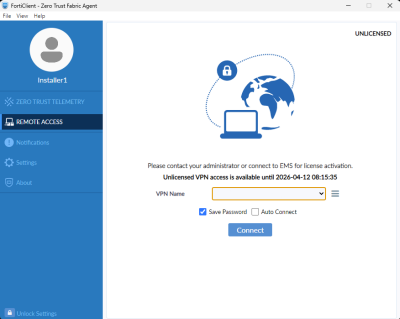
- In the left blue menu, click Remote Access. You should see the warning that it is UNLICENCED in the top right-hand corner.
2. Reconnect the Zero Trust Telemetry using the invitation code below.
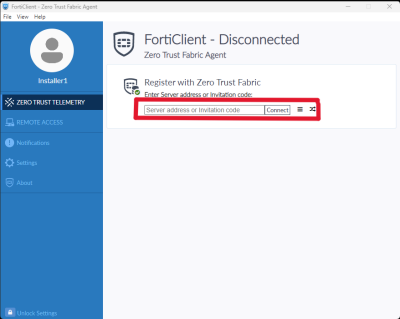
- In the blue menu on the left, click Zero Trust Telemetry.
- Copy the following invitation code, and paste it into the Server Address or Invitation code field:
_VjE6bGVtcy5jb25jb3JkaWEuY2E6ODAxMzpkZWZhdWx0Ojk2ZjFhYWU2LTFiMzUtNDg5ZC1iZWZhLTE4NTM1ZDUwMzVmNQ==
Tip: ensure that no extra spaces are added when you paste the invitation code.
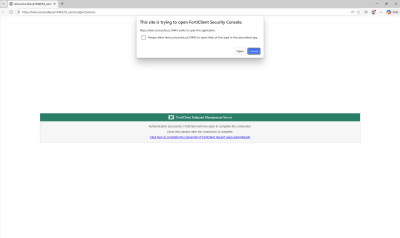
- Click Connect. Wait 30 seconds. A browser window will open.
- When prompted, click Accept. If prompted to do so, log in using Concordia email and password + MFA.
3. Connect to the new VPN
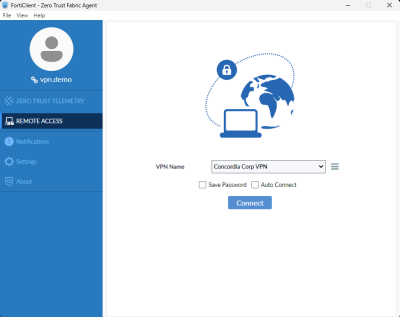
- In FortiClient, click Remote Access.
- Select Save Password and Auto Connect (recommended).
- Click Connect.
- When prompted, authenticate with Concordia e-mail and password + MFA.
- You are now connected to the new VPN. From now on, you will be able to connect in the same way as you did previously.
After making the switch, please take a moment to share your feedback!